
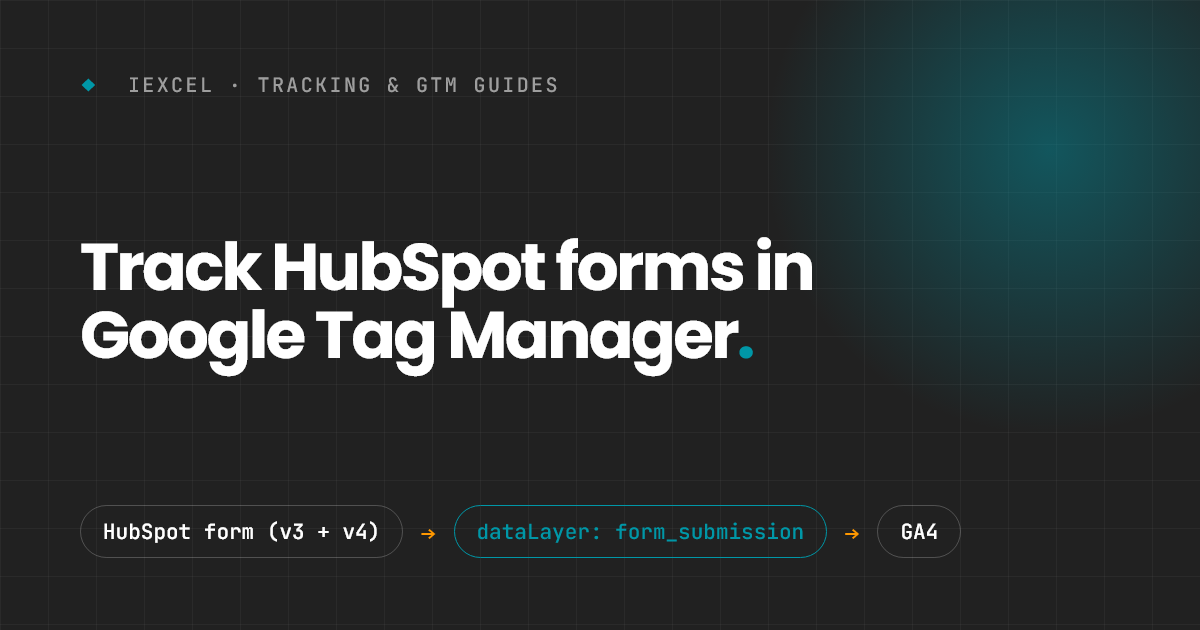
HubSpot's embed code handles the form submission itself, so GTM's built-in Form Submission trigger often misses it. HubSpot does announce every successful submission in the browser, though. You just have to listen for it. One Custom HTML tag catches that announcement and pushes a form_submission event into the dataLayer. Everything else is standard GTM: a custom event trigger, two Data Layer Variables and a GA4 tag.
The listener below is adapted from Julius Fedorovicius's guide at Analytics Mania, Track HubSpot Forms with Google Tag Manager and Google Analytics 4. Credit for the approach goes to him.
What you'll build
| GTM item | Type | What it does |
|---|---|---|
cHTML - HubSpot form listener | Custom HTML tag | Listens for HubSpot submissions and pushes form_submission to the dataLayer |
DLV - form_id | Data Layer Variable | Reads the HubSpot form GUID |
DLV - conversion_id | Data Layer Variable | Reads HubSpot's ID for that single submission |
CE - form_submission | Custom Event trigger | Fires when the listener pushes a submission |
GA4 - generate_lead | GA4 Event tag | Sends the lead to GA4 with the form ID attached |
Why you need two listeners
HubSpot has two generations of forms, and they announce submissions differently:
- Legacy forms (v3 embed) post a browser
messagewithtype: "hsFormCallback". TheonFormSubmittedcallback fires after HubSpot accepts the submission. - Forms built in HubSpot's updated forms editor (v4 embed) fire a global window event instead:
hs-form-event:on-submission:success. HubSpot documents the legacy callbacks and the new global events separately, so don't count on the old listener catching new forms.
Most portals have both kinds live, so the listener handles both and pushes the same event shape either way. Your GTM setup never has to care which embed a page uses.
Step 1: Add the listener as a Custom HTML tag
In GTM, go to Tags → New → Custom HTML, name it cHTML - HubSpot form listener, and paste:
<script>
window.dataLayer = window.dataLayer || [];

//listener for older version (v3) of HS forms
window.addEventListener('message', function(event) {
  if (event.data.type === 'hsFormCallback' && event.data.eventName === 'onFormSubmitted') {
    window.dataLayer.push({
      event: 'form_submission',
      form_id: event.data.id,
      conversion_id: event.data.data.conversionId,
      form_data: event.data.data.submissionValues,
    });
  }
});

//listener for v4 HS forms
window.addEventListener("hs-form-event:on-submission:success", function(event) {
  var formsApi = window.HubSpotFormsV4 || window.HubspotFormsV4;
  var hsform = formsApi && formsApi.getFormFromEvent(event);
  if (hsform) {
    hsform.getFormFieldValues().then(function(fieldValues) {
      var transformedData = fieldValues.reduce(function(obj, item) {
        var key = item.name.split('/')[1];
        if (key) {
          obj[key] = item.value;
        }
        return obj;
      }, {});

      window.dataLayer.push({
        event: "form_submission",
        form_id: hsform.getFormId(),
        conversion_id: hsform.getConversionId(),
        form_data: transformedData
      });
    });
  }
});
</script>
For the trigger, use Page View → Some Page Views limited to the pages that carry forms. That keeps the listener off pages that don't need it. If forms live all over the site, the built-in All Pages trigger is fine.
What the v4 block is doing
New-editor field names come back prefixed with an object type ID, for example 0-1/email. The reduce strips that prefix, so form_data ends up as a flat object like { email: "…", firstname: "…" }. HubSpot's docs note that getFormFieldValues() doesn't return file-upload fields, so don't expect them in form_data.
Step 2: Create the Data Layer Variables
Go to Variables → User-Defined Variables → New → Data Layer Variable and create:
| Variable name | Data Layer Variable Name | Version |
|---|---|---|
DLV - form_id | form_id | Version 2 |
DLV - conversion_id | conversion_id | Version 2 |
form_id is the form's GUID, the same ID you see in the form's embed code (formId in a v3 embed, data-form-id in a v4 embed). That's the value you'll filter and report on.
Step 3: Create the custom event trigger
Go to Triggers → New → Custom Event and set:
- Name:
CE - form_submission - Event name:
form_submission - This trigger fires on: All Custom Events
To track only one form, switch to Some Custom Events and add the condition DLV - form_id equals that form's GUID. Build one trigger per form you want to treat differently, for example a demo request vs. a newsletter signup.
Step 4: Send the lead to GA4
Create a Google Analytics: GA4 Event tag:
- Event name:
generate_lead, GA4's recommended event for lead forms - Event parameters:
form_id={{DLV - form_id}} - Trigger:
CE - form_submission
In GA4, register form_id as an event-scoped custom dimension so you can break leads out by form. Then mark generate_lead as a key event in Admin → Events.
Step 5: Test it in Preview mode
- Click Preview in GTM and open a page with a HubSpot form.
- Submit a test entry.
- In Tag Assistant, confirm
form_submissionappears in the event list on the left. - Open the Variables tab on that event and check that
DLV - form_idholds the form's GUID. - Confirm
GA4 - generate_leadfired, then watch for the event in GA4 DebugView.
Test one legacy form and one v4 form if your portal has both. They take different paths through the listener.
Troubleshooting
- No
form_submissionevent at all: check that the Custom HTML tag fired on that page. If it did, check whether the form is inside a pop-up or a third-party iframe. The listener can only hear events on the page it runs on. - The event fires but
form_datais empty on a v4 form:form_idandconversion_idare the values to build on. Treatform_dataas a bonus and verify it per form. - Duplicate leads: make sure the listener tag isn't firing twice, for example on both All Pages and a page-specific trigger. Each fire adds another set of listeners.